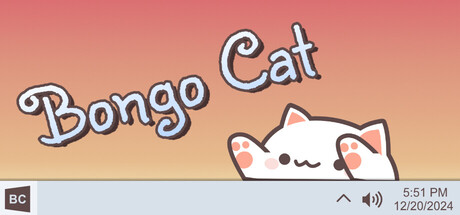
Bongo the Cat Customization Guide - Make It Yours!
Last Updated: January 15, 2025
Difficulty: Easy to Advanced
Time Required: 10-60 minutes (depending on complexity)
Introduction
One of the best features of Bongo the Cat is its incredible customization potential! From simple skin swaps to creating entirely custom animations and sounds, this guide covers everything you need to personalize your desktop companion.
Quick Customization (Beginners)
Using Built-in Skins
The easiest way to customize:
- Right-click Bongo Cat on your taskbar
- Select “Skins”
- Browse and click any skin to apply
- Instant change - no restart needed!
Default Skins Available:
- Classic White Cat ⚪
- Black Cat ⚫
- Orange Tabby 🧡
- Gray Cat 🩶
- Calico 🎨
- Siamese 🤎
- Tuxedo 🎩
Steam Workshop Integration
Downloading Workshop Content
The Steam Workshop has thousands of community-created skins and sound packs!
How to Access:
- Open Steam
- Go to Bongo Cat in your library
- Click “Workshop” tab (or visit Workshop page directly)
- Browse featured or search for specific items
Categories to Explore:
- Skins - Visual appearance changes
- Sound Packs - Different drum/keyboard sounds
- Animation Packs - Custom movement patterns
- Themes - Complete style overhauls
- Meme Skins - Popular internet memes
Installing Workshop Items
Method 1: One-Click Subscribe
- Find an item you like on the Workshop
- Click green “Subscribe” button
- Wait for download (usually 1-5 seconds)
- Launch Bongo Cat - new content appears automatically
Method 2: Collections
- Browse curated “Collections” on Workshop
- Subscribe to entire collection at once
- Get themed sets (e.g., “Holiday Pack”, “Anime Cats”)
Managing Workshop Content
Unsubscribing:
- Workshop page → Click “Unsubscribe” on items
- Or in Bongo Cat settings → “Manage Content”
Updating:
- Workshop content auto-updates when creator publishes changes
- Can disable auto-updates in Steam settings
Community Content (Discord, Reddit)
Joining the Community
Official Discord: Join Here
Channels to check out:
#custom-skins- Share and download skins#sound-packs- Custom audio files#showcase- Show off your setup#tutorial- Learn from others
Reddit Community: r/BongoCat (if exists)
- Weekly skin showcases
- Tutorials and guides
- Help and troubleshooting
Downloading from Discord
- Browse
#custom-skinschannel - Find a skin you like
- Download the attached file (usually
.zipor.png) - Follow installation instructions (see below)
Manual Skin Installation
Installing Downloaded Skins
Step-by-Step:
- Download the skin file (usually
.zip,.png, or folder) - Extract if it’s a
.zipfile - Open Bongo Cat settings → “Appearance” → “Manage Skins”
- Click “Import Skin” button
- Browse to your downloaded skin file/folder
- Select it and click “Open”
- Skin appears in your skins list
- Apply to use it immediately
File Locations:
- Skins folder:
C:\Program Files (x86)\Steam\steamapps\common\BongoCat\skins\ - Or:
%APPDATA%\BongoCat\skins\
Organizing Your Skins
Create categories:
- Right-click in skins list → “New Folder”
- Name it (e.g., “Anime”, “Seasonal”, “Favorites”)
- Drag and drop skins into folders
- Easier to find skins later
Creating Custom Skins
Beginner Method: Edit Existing Skins
What You Need:
- Image editing software (Paint.NET, GIMP, Photoshop)
- An existing skin as a template
Steps:
-
Export a default skin
- Settings → “Appearance” → Select any skin
- Click “Export” → Save to desktop
-
Open in image editor
- Usually a
.pngfile with transparency - Shows the cat in different poses/frames
- Usually a
-
Edit colors and details
- Change fur color
- Add accessories (hats, glasses)
- Modify eyes, whiskers, etc.
-
Save as new file
- Keep transparency (save as
.png) - Name it descriptively
- Keep transparency (save as
-
Import back into Bongo Cat
- Follow manual installation steps above
Advanced Method: Create from Scratch
Requirements:
- Advanced image editor (Photoshop, Illustrator)
- Understanding of sprite sheets
- Animation knowledge (optional)
Skin Structure:
- Sprite Sheet: Multiple frames in one image
- Frame Layout: Each pose/animation frame
- Resolution: Recommended 512x512 per frame
- Format:
.pngwith transparency
Frame Types Needed:
- Idle pose
- Drumming poses (left paw, right paw)
- Special animations (optional)
- Idle alternate (sleep, wave, etc.)
Templates Available:
- Download official template from Discord
- Includes all required frames pre-positioned
- Just fill in with your art!
Creating Animated Skins
For Advanced Users:
- Create multiple sprite sheets for different animations
- Define animation timing in config file
- Add transition effects
- Test extensively before sharing
Config File Example:
{
  "name": "My Custom Cat",
  "author": "Your Name",
  "frames": {
    "idle": "idle.png",
    "drum_left": "drum_left.png",
    "drum_right": "drum_right.png"
  },
  "animation_speed": 0.15,
  "frame_size": [512, 512]
}
Custom Sound Packs
Downloading Sound Packs
Workshop:
- Search for “sound pack” on Steam Workshop
- Subscribe to download
- Automatically available in Bongo Cat
Discord:
#sound-packschannel- Download
.zipfiles - Extract and follow installation instructions
Installing Custom Sounds
- Download sound pack (usually contains multiple
.wavor.mp3files) - Extract to:
%APPDATA%\BongoCat\sounds\ - Open Bongo Cat → Settings → “Audio”
- Click “Refresh Sound Packs”
- Your new pack appears in the list
- Select and apply!
Creating Your Own Sound Pack
What You Need:
- Audio files (
.wavformat recommended) - At least 5-10 different sounds
- Audio editing software (Audacity - free)
Steps:
-
Record or find sounds
- Drum hits, keyboard clicks, musical notes
- Keep under 1 second each
- Match similar volume levels
-
Edit and normalize
- Trim silence
- Normalize volume to -3dB
- Export as
.wav(16-bit, 44.1kHz)
-
Organize files
- Name them:
hit1.wav,hit2.wav, etc. - Create
config.jsonwith metadata
- Name them:
-
Package as ZIP
- Include all
.wavfiles +config.json - Name:
YourPackName.zip
- Include all
-
Install and test
- Extract to sounds folder
- Test in Bongo Cat
Config Example:
{
  "name": "Piano Keys Pack",
  "author": "Your Name",
  "version": "1.0",
  "sounds": [
    "piano_c.wav",
    "piano_d.wav",
    "piano_e.wav",
    "piano_f.wav",
    "piano_g.wav"
  ],
  "randomize": true
}
Sharing Your Creations
Upload to Steam Workshop
-
Prepare your content
- Skin or sound pack folder
- Preview image (1920x1080 recommended)
- Description and tags
-
Launch Workshop Uploader
- In Steam, go to Bongo Cat page
- Click “Workshop” → “Upload”
- Or use in-game upload tool
-
Fill in details
- Title (descriptive and searchable)
- Description (what makes it unique?)
- Tags (skin, sound, theme, etc.)
- Visibility (Public/Friends/Private)
-
Upload and publish
- Wait for processing
- Share the link with community!
Share on Discord
- Go to
#custom-skinsor#sound-packschannel - Upload your
.zipfile (under 8MB) - Write a description
- Add screenshots/preview
- Community members can download and provide feedback!
Best Practices for Sharing
DO:
- ✅ Include preview images
- ✅ Credit original inspiration/assets
- ✅ Test thoroughly before uploading
- ✅ Provide clear installation instructions
- ✅ Respond to comments and feedback
DON’T:
- ❌ Upload copyrighted content without permission
- ❌ Steal others’ work and claim as yours
- ❌ Upload NSFW/inappropriate content
- ❌ Spam workshop with low-effort submissions
Popular Customization Themes
Seasonal Themes
Winter/Christmas:
- Santa hat
- Snow particles
- Jingle bell sounds
Halloween:
- Pumpkin decorations
- Spooky sounds
- Witch hat accessory
Summer:
- Beach ball
- Sunglasses
- Ocean wave sounds
Pop Culture Skins
- Anime character-inspired cats
- Video game character themes
- Movie/TV show references
- Meme cats (Nyan Cat style)
Minimalist Designs
- Simple solid colors
- Geometric shapes
- Monochrome black/white
- Clean, modern aesthetic
Troubleshooting Custom Content
Skin Not Showing Up
Problem: Imported skin doesn’t appear in list
Solution:
- Check file format (must be
.pngor proper folder structure) - Ensure skin is in correct directory
- Click “Refresh Skins” in settings
- Restart Bongo Cat
Skin Looks Glitchy
Problem: Missing parts, weird colors, broken animation
Solution:
- Check image resolution matches requirements
- Ensure transparency is preserved
- Verify all required frames are included
- Re-download or contact creator
Sound Pack Not Working
Problem: Custom sounds don’t play
Solution:
- Verify file format (
.wavpreferred) - Check files are in sounds folder
- Ensure
config.jsonhas correct file names - Test with default sounds to rule out settings issue
Advanced Customization
Particle Effects
Create custom particle effects for drumming:
- Design particles in image editor
- Export as sprite sheet
- Configure in
particles.json - Place in effects folder
Animation Timing
Adjust how fast the cat moves:
- Edit
animation_config.jsonin skin folder - Change frame durations
- Add delays between movements
- Create smoother or snappier animations
Behavior Mods
For Advanced Users:
- Modify idle behaviors
- Create new interaction types
- Add special holiday animations
- Community guides available on Discord
Inspiration Gallery
Where to Find Ideas
Steam Workshop:
- Sort by “Most Popular” or “Most Recent”
- Check “Featured” collections
Pinterest/ArtStation:
- Search “Bongo Cat” or “desktop pet”
- Lots of fan art to inspire custom skins
YouTube:
- Tutorial videos
- Showcase videos
- Time-lapse creation process
Featured Creators
Follow these talented creators for amazing content:
- Check Discord’s “Verified Creators” role
- Workshop creators with 1000+ subscribers
- Community spotlight posts
What’s Next?
Continue your Bongo Cat journey:
- Troubleshooting Guide - Fix issues with custom content
- Community Guide - Connect with other creators
- Setup Guide - Fine-tune your customized setup
Conclusion
Customization is where Bongo the Cat truly shines! Whether you’re using simple Workshop skins or creating complex custom animations, there’s endless potential to make this desktop companion uniquely yours.
Remember: The community is incredibly welcoming to new creators. Don’t be afraid to share your first attempt - everyone starts somewhere!
Need Help?
- Join the Discord community
- Ask in Steam discussions
- Check our other guides
Last verified: January 2025 | Guide author: Game Guides Team
Related Guides
Bongo the Cat Beginner's Guide - Download, Install & Get Started 2025
Complete beginner's guide for Bongo the Cat. Learn how to download from Steam, install on Windows, and start enjoying your new desktop pet companion today!
Bongo the Cat Setup & Configuration Guide - Complete Settings Tutorial
Master all Bongo the Cat settings and configurations. Learn about appearance options, audio controls, behavior settings, hotkeys, and advanced features.
Bongo the Cat Community Guide - Discord, Resources & How to Connect
Join the Bongo the Cat community! Connect on Discord, share creations, find resources, participate in events, and meet fellow fans worldwide.