Bongo the Cat Beginner’s Guide - Get Started in 5 Minutes
Last Updated: January 15, 2025
Difficulty: Easy
Time Required: 5-10 minutes
What is Bongo the Cat?
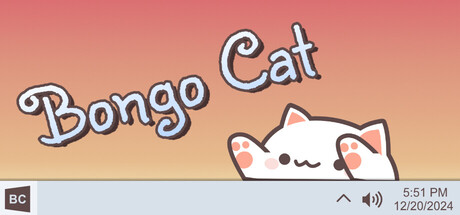
Bongo the Cat (also known as Bongo Cat) is a free, adorable desktop pet application that has taken Steam by storm with over 11,000 concurrent players. When you type on your keyboard, a cute cat appears on your Windows taskbar and drums along with your typing rhythm!
Featured on PC Gamer as “one of the biggest games on Steam right now,” this charming application brings instant joy to your workspace without being intrusive.
Key Features
✅ Completely Free - No hidden costs or subscriptions
✅ Lightweight - Runs quietly in the background
✅ Interactive - Responds to your typing in real-time
✅ Customizable - Change skins, sounds, and behavior
✅ Non-Intrusive - Lives in your taskbar
✅ Active Community - Thousands of fans sharing custom content
System Requirements
Before downloading, make sure your system meets these minimal requirements:
Minimum Requirements
- OS: Windows 10 (64-bit) or newer
- Processor: Intel Core i3 or equivalent
- Memory: 2 GB RAM
- Storage: 100 MB available space
- Additional: Active internet connection for Steam
Recommended
- OS: Windows 11
- Memory: 4 GB RAM or more
- Display: 1920x1080 resolution
Note: Bongo the Cat is currently only available for Windows PC. Mac and Linux versions are not officially supported.
Step 1: Download Bongo the Cat from Steam
Create a Steam Account (If Needed)
If you don’t have a Steam account:
- Visit store.steampowered.com
- Click “Install Steam” in the top-right corner
- Download and install the Steam client
- Create your free account
- Verify your email address
Download Bongo Cat
- Open Steam on your computer
- Click the Search bar at the top
- Type “Bongo Cat” and press Enter
- Click on “Bongo Cat” in the search results
- On the game page, click the green “Play Game” or “Add to Library” button
- Click “Install” when prompted
- Choose your installation location
- Wait for the download to complete (usually 1-3 minutes)
Direct Link: Bongo Cat on Steam
Step 2: Install and Launch
Installation Process
- Once downloaded, Steam will automatically begin installation
- You’ll see a progress bar showing installation status
- When complete, you’ll see “Play” button turn green
- Click “Play” to launch Bongo the Cat for the first time
First Launch
When you first launch Bongo the Cat:
- Permission Prompts - You may see Windows security warnings. Click “Allow” to let the app run
- Taskbar Positioning - The cat will appear on your Windows taskbar
- Initial Setup - A welcome window may appear with basic instructions
- Test It Out - Start typing to see the cat drum!
Step 3: Basic Controls and Usage
How Bongo the Cat Works
Bongo the Cat is automatic! Once running, it will:
- Monitor your keyboard - Detects when you type
- Animate in real-time - Cat paws drum on the taskbar
- Play sounds (optional) - Drum sounds with each keystroke
- Run in background - Won’t interfere with your work
Basic Controls
| Action | How To Do It |
|---|---|
| Start Bongo Cat | Launch from Steam or Windows Start Menu |
| Pause/Resume | Right-click the cat → “Pause” |
| Open Settings | Right-click the cat → “Settings” |
| Change Skin | Settings → “Appearance” → Select skin |
| Adjust Volume | Settings → “Audio” → Volume slider |
| Exit Application | Right-click the cat → “Exit” |
Testing Your Setup
To make sure everything works:
- Open any text editor (Notepad, Word, browser, etc.)
- Start typing on your keyboard
- Watch the taskbar - You should see the cat’s paws drumming
- Listen - If sounds are enabled, you’ll hear drum beats
If the cat isn’t responding, see our Troubleshooting Guide.
Step 4: Basic Customization
Change the Cat’s Appearance
Want a different cat? Try these quick customization options:
-
Right-click the cat on your taskbar
-
Select “Skins” or “Appearance”
-
Browse available skins:
- Classic White Cat (default)
- Black Cat
- Orange Tabby
- Calico
- Custom community skins
-
Click to apply your favorite skin
Adjust Sound Settings
Control the drum sounds:
- Right-click the cat → “Settings”
- Navigate to “Audio” tab
- Adjust:
- Master Volume - Overall sound level
- Mute Sounds - Toggle sounds on/off
- Sound Pack - Choose different drum sounds
Animation Speed
Make the cat drum faster or slower:
- Settings → “Animation” tab
- Adjust “Speed” slider
- Preview changes in real-time
Step 5: Daily Usage Tips
Best Practices
DO:
- ✅ Let Bongo Cat run in the background while you work
- ✅ Adjust volume to a comfortable level
- ✅ Explore different skins to keep it fresh
- ✅ Share your setup with friends
DON’T:
- ❌ Close it by force-ending the task (use “Exit” instead)
- ❌ Run multiple instances (can cause conflicts)
- ❌ Worry about performance (it uses minimal resources)
Auto-Start on Windows Boot (Optional)
Want Bongo Cat to launch automatically when you start your PC?
- Press Windows + R to open Run dialog
- Type
shell:startupand press Enter - This opens your Startup folder
- Right-click inside the folder → “New” → “Shortcut”
- Browse to your Bongo Cat installation (usually in Steam folder)
- Click “Next” and “Finish”
Now Bongo Cat will greet you every time you boot your PC!
Common Questions (FAQ)
Is Bongo the Cat really free?
Yes! Completely free with no hidden costs, ads, or subscriptions.
Will it slow down my computer?
No. Bongo the Cat is extremely lightweight and uses minimal CPU/RAM. Most users don’t notice any performance impact.
Can I use it while gaming?
Yes! It runs in the background and won’t interfere with games or other applications.
Does it work with laptops?
Absolutely! Works perfectly on both desktop PCs and laptops running Windows 10/11.
Can I create my own custom skins?
Yes! The community has created tons of custom skins. Check our Customization Guide to learn how.
Is my keyboard data being tracked?
No. Bongo the Cat only detects when you press keys, not what keys you press. Your privacy is protected.
What’s Next?
Now that you’ve got Bongo the Cat up and running, explore these guides:
📚 Continue Learning
- Setup & Configuration Guide - Deep dive into all settings and options
- Customization Guide - Learn to customize skins, sounds, and behavior
- Troubleshooting Guide - Fix common issues
- Community Resources - Join Discord, find custom content
🎨 Get Creative
- Download community-created skins
- Create your own custom cat design
- Share your setup on social media
- Join the Discord community
Conclusion
Congratulations! You’ve successfully installed Bongo the Cat and learned the basics. This adorable desktop companion will bring smiles to your workspace for years to come.
Remember:
- It’s completely free and safe
- Uses minimal system resources
- Highly customizable to match your style
- Backed by an active community
Have questions? Join the official Discord or check our other guides!
Related Guides:
Last verified: January 2025 | Guide author: Game Guides Team
Related Guides
Bongo the Cat Customization Guide - Skins, Sounds & Custom Content 2025
Learn how to customize Bongo the Cat with custom skins, sound packs, and community creations. Download from Steam Workshop, Discord, and create your own!
Bongo the Cat Setup & Configuration Guide - Complete Settings Tutorial
Master all Bongo the Cat settings and configurations. Learn about appearance options, audio controls, behavior settings, hotkeys, and advanced features.
Bongo the Cat Community Guide - Discord, Resources & How to Connect
Join the Bongo the Cat community! Connect on Discord, share creations, find resources, participate in events, and meet fellow fans worldwide.