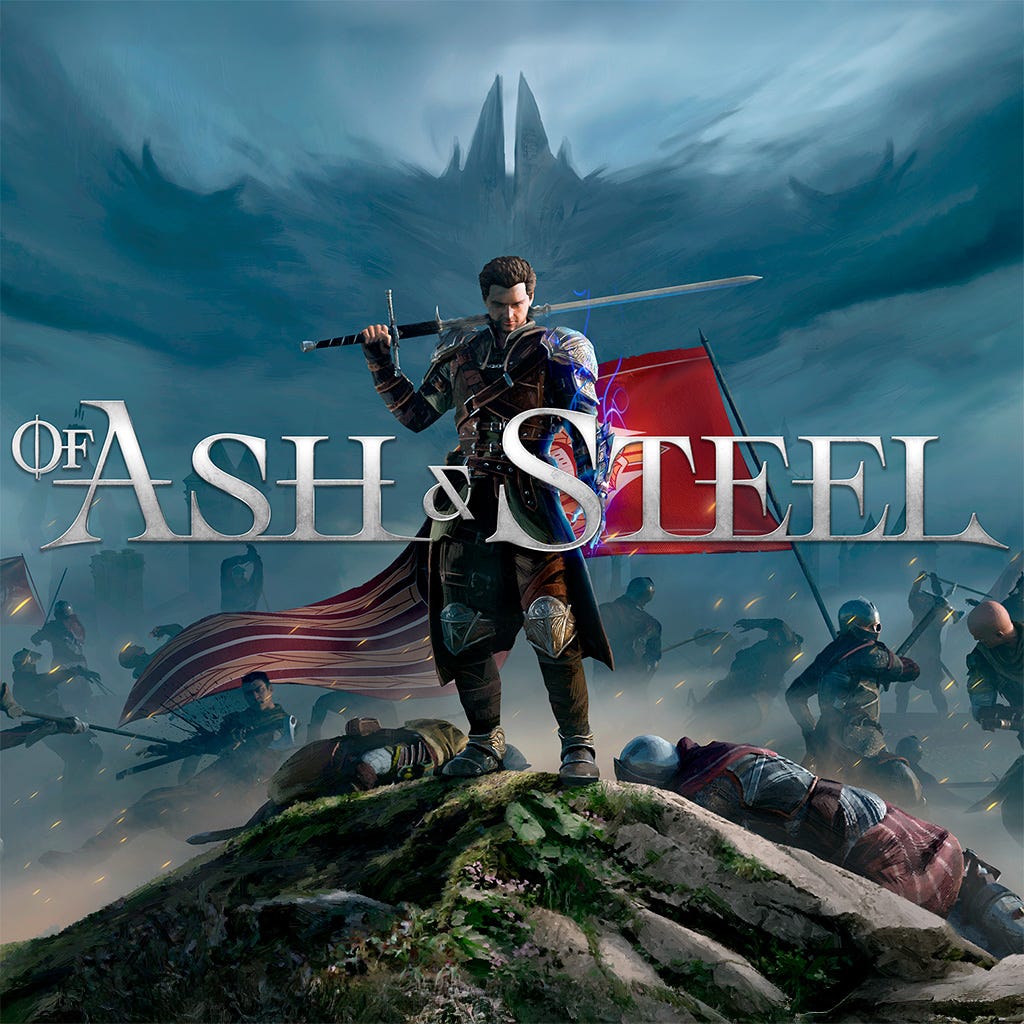
Of Ash and Steel, while an ambitious RPG, is known for various technical challenges that can impact gameplay. This comprehensive guide addresses the most common issues and provides practical solutions to improve your gaming experience.
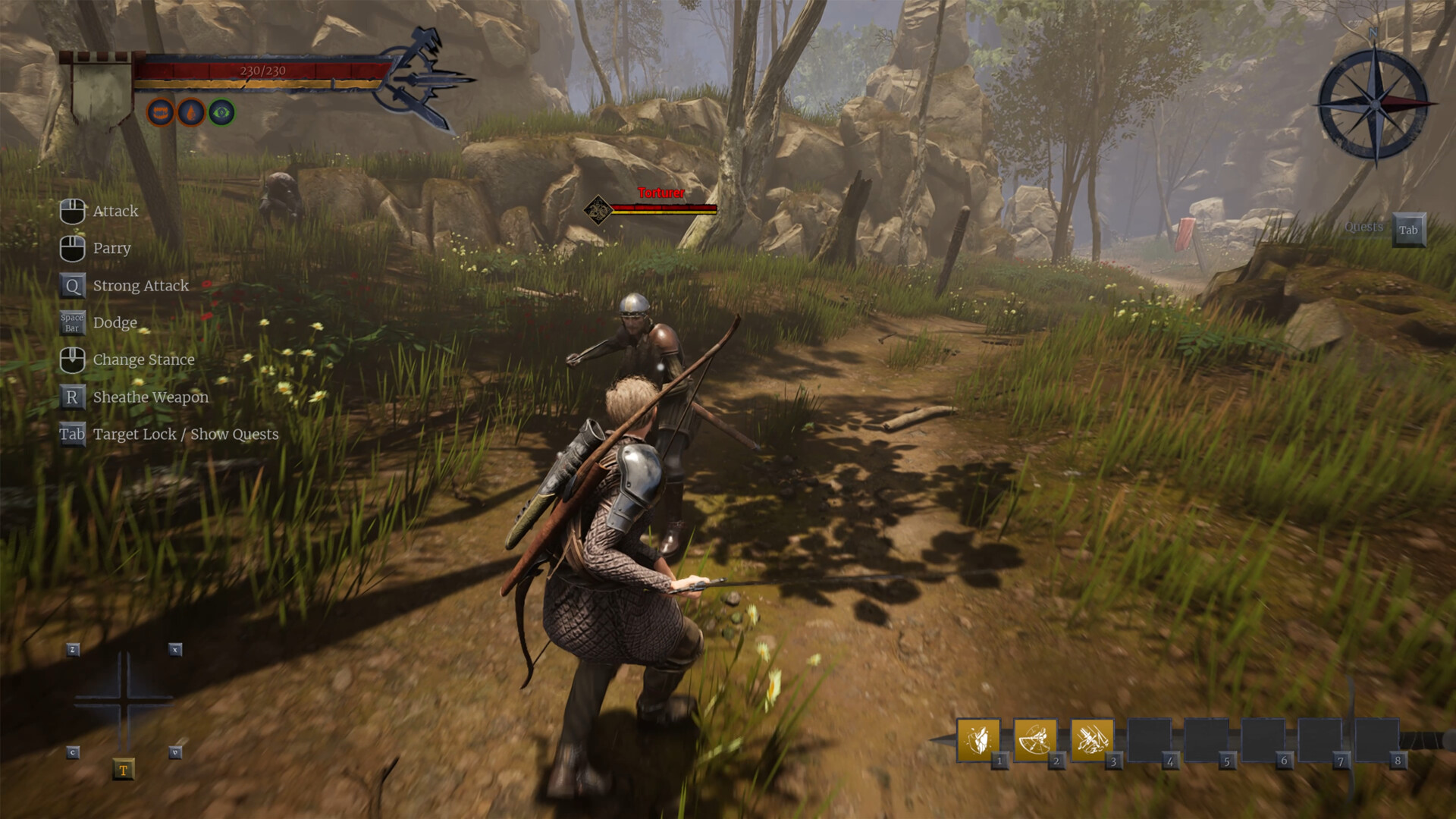 Proper settings and troubleshooting can significantly improve your experience
⚠️ Known Issues
Of Ash and Steel has documented technical problems including performance issues, control bugs, and stability concerns. This guide helps you work around these limitations.
Performance Optimization
System Requirements Reality Check
Minimum vs. Recommended Performance:
- Official requirements may not reflect actual performance needs
- High-end systems still experience frame rate issues
- Optimization is poor across all hardware configurations
- Expect compromises regardless of your setup
Graphics Settings Optimization
Essential Settings to Lower First
| Setting | Recommended Value | Impact | Reason |
|---|---|---|---|
| Shadows | Low or Off | High | Major performance drain |
| Anti-Aliasing | Off or FXAA | Medium | Expensive with minimal benefit |
| Post-Processing | Low | Medium | Reduces visual effects load |
| View Distance | Medium | High | Limits rendering distance |
| Texture Quality | Medium | Low | Balance quality vs. performance |
Step-by-Step Optimization Process
- Start with everything on Low
- Test performance in different areas
- Gradually increase settings one by one
- Find your stable baseline
- Prioritize settings that matter most to you
Advanced Performance Tweaks
Windows Optimization
Game Mode Settings:
- Press
Windows + Ito open Settings - Go to Gaming → Game Mode
- Enable Game Mode
- Disable Game Bar if not needed
- Turn off Game DVR recording
Power Settings:
- Open Control Panel → Power Options
- Select High Performance mode
- Disable USB selective suspend
- Set PCI Express to Never turn off
Graphics Driver Optimization
NVIDIA Users:
- Open NVIDIA Control Panel
- Go to Manage 3D Settings
- Set Power Management to Maximum Performance
- Disable Vertical Sync (use in-game setting instead)
- Set Texture Filtering to Performance
AMD Users:
- Open AMD Radeon Settings
- Go to Gaming → Global Settings
- Enable Radeon Anti-Lag
- Set Texture Filtering to Performance
- Disable Radeon Enhanced Sync
Control and Input Issues
Mouse Control Problems
Common Mouse Issues
Symptoms:
- Mouse cursor disappears in menus
- Clicking doesn’t register properly
- Camera movement feels sluggish or erratic
- Menu navigation becomes impossible
Solutions:
Aspect Ratio Fix:
- Check your display resolution
- Ensure aspect ratio matches your monitor
- Avoid ultrawide resolutions if experiencing issues
- Try 16:9 resolutions (1920x1080, 2560x1440)
Mouse Sensitivity Adjustment:
- Lower in-game mouse sensitivity to 30-50%
- Disable mouse acceleration in Windows
- Use raw input if available in settings
- Try different polling rates on gaming mice
Emergency Reset:
- Alt+Tab out and back into the game
- Press F11 to toggle fullscreen mode
- Restart the game if controls remain broken
Keyboard Input Problems
Stuck Keys:
- Press all movement keys once to reset
- Check for sticky keys in Windows accessibility
- Restart the game if keys remain unresponsive
Keybinding Issues:
- Reset to default keybindings
- Avoid special characters in custom bindings
- Use standard QWERTY layout for best compatibility
Stability and Crash Issues
Common Crash Scenarios
Loading Screen Crashes
Symptoms:
- Game freezes during area transitions
- Black screen with no response
- Crash to desktop during loading
Solutions:
- Lower texture quality to reduce VRAM usage
- Close background applications
- Verify game files through Steam
- Run as administrator
- Disable fullscreen optimizations
Save Game Corruption
Prevention:
- Make manual backup copies of save files
- Don’t alt-tab during saving
- Wait for save icon to disappear completely
- Save in safe locations (towns, camps)
Recovery:
- Check for backup saves in the save folder
- Try loading earlier saves
- Verify save file integrity
- Start new game if corruption is severe
Memory and Storage Issues
RAM Optimization
Close Unnecessary Programs:
- Web browsers with multiple tabs
- Streaming software
- Background game launchers
- System monitoring tools
Virtual Memory Settings:
- Increase page file size to 8-16GB
- Set on SSD if available
- Let Windows manage automatically
Storage Space Management
Free Up Disk Space:
- Ensure 10GB+ free space on game drive
- Clear temporary files regularly
- Move other games to different drives
- Use disk cleanup tools
Audio Issues
Sound Problems
No Audio:
- Check Windows audio settings
- Verify correct audio device is selected
- Update audio drivers
- Try different audio formats (16-bit, 24-bit)
Audio Stuttering:
- Lower audio quality in game settings
- Disable audio enhancements in Windows
- Close audio-intensive programs
- Try different audio drivers
Network and Multiplayer Issues
Connection Problems
Note: Of Ash and Steel is primarily single-player, but some features may require internet connectivity.
Connectivity Issues:
- Check firewall settings
- Verify internet connection
- Disable VPN if active
- Try different DNS servers
System Compatibility
Windows Version Compatibility
Supported Systems:
- Windows 10 (recommended)
- Windows 11 (may have additional issues)
- Older versions not officially supported
Compatibility Mode:
- Right-click game executable
- Select Properties → Compatibility
- Try Windows 8 compatibility mode
- Enable “Run as administrator”
Hardware Compatibility
Graphics Card Issues
Older GPUs:
- Update to latest drivers
- Lower all graphics settings
- Consider DirectX 11 mode if available
Integrated Graphics:
- Not recommended for this game
- Expect very poor performance
- Use lowest possible settings
CPU Bottlenecks
Older Processors:
- Close background applications
- Set game to high priority in Task Manager
- Disable Windows Game Mode (may help older CPUs)
Troubleshooting Workflow
Step-by-Step Problem Solving
When Game Won’t Start
- Verify game files through Steam
- Update graphics drivers
- Run as administrator
- Check Windows updates
- Disable antivirus temporarily
- Reinstall Visual C++ redistributables
When Game Runs Poorly
- Lower all graphics settings
- Close background programs
- Check system temperatures
- Update all drivers
- Verify adequate free disk space
- Consider hardware limitations
When Game Crashes Frequently
- Check Windows Event Viewer for error details
- Monitor system temperatures
- Test system RAM with MemTest86
- Update BIOS if very outdated
- Consider hardware failure
Emergency Solutions
Quick Fixes for Common Problems
Game Frozen:
- Ctrl+Alt+Delete → Task Manager → End Task
- Alt+F4 to force close
- Windows+Tab to switch desktops
Controls Not Working:
- Alt+Tab out and back in
- Press F11 twice (fullscreen toggle)
- Restart game
Performance Suddenly Poor:
- Check for Windows updates running in background
- Close web browsers
- Restart computer to clear memory
Prevention and Maintenance
Regular Maintenance Tasks
Weekly:
- Update graphics drivers
- Clear temporary files
- Check for game updates
- Backup save files
Monthly:
- Defragment hard drives (not SSDs)
- Check system temperatures
- Update Windows
- Clean dust from computer
System Monitoring
Useful Tools:
- MSI Afterburner - GPU monitoring
- HWiNFO64 - System temperatures
- Task Manager - CPU and RAM usage
- CrystalDiskInfo - Drive health
When to Seek Additional Help
Community Resources
Official Channels:
- Steam Community Forums
- Developer Discord servers
- Official support tickets
Unofficial Help:
- Reddit gaming communities
- YouTube troubleshooting videos
- Gaming forums and wikis
Hardware Upgrade Considerations
If Nothing Else Works:
- Consider hardware limitations
- Research minimum requirements vs. your system
- Plan upgrades if budget allows
- Accept game limitations as a last resort
Conclusion
Of Ash and Steel’s technical issues are well-documented, but many can be worked around with proper settings and troubleshooting. The key is patience and systematic problem-solving.
Remember that some issues may be inherent to the game’s engine and optimization, so perfect performance may not be achievable on all systems. Focus on finding a stable, playable configuration that works for your setup.
Most Important Tips:
- Start with low settings and work up
- Keep drivers updated
- Save frequently due to stability issues
- Be patient with loading times
- Have realistic expectations about performance
Having technical difficulties? Try our Beginner’s Guide for basic setup help, or check our Survival Tips once you get the game running smoothly.
Related Guides
Of Ash and Steel Beginner's Guide 2025 - Complete Getting Started Tutorial
Master Of Ash and Steel from day one with our comprehensive beginner's guide. Learn essential survival tips, combat mechanics, character development, and how to thrive on Greyshaft island in this challenging low fantasy RPG.
Of Ash and Steel Survival Guide 2025 - Combat, Exploration & Resource Management
Survive and thrive in Of Ash and Steel with expert combat strategies, exploration techniques, and resource management tips. Master stamina management, faction navigation, and environmental hazards on Greyshaft island.
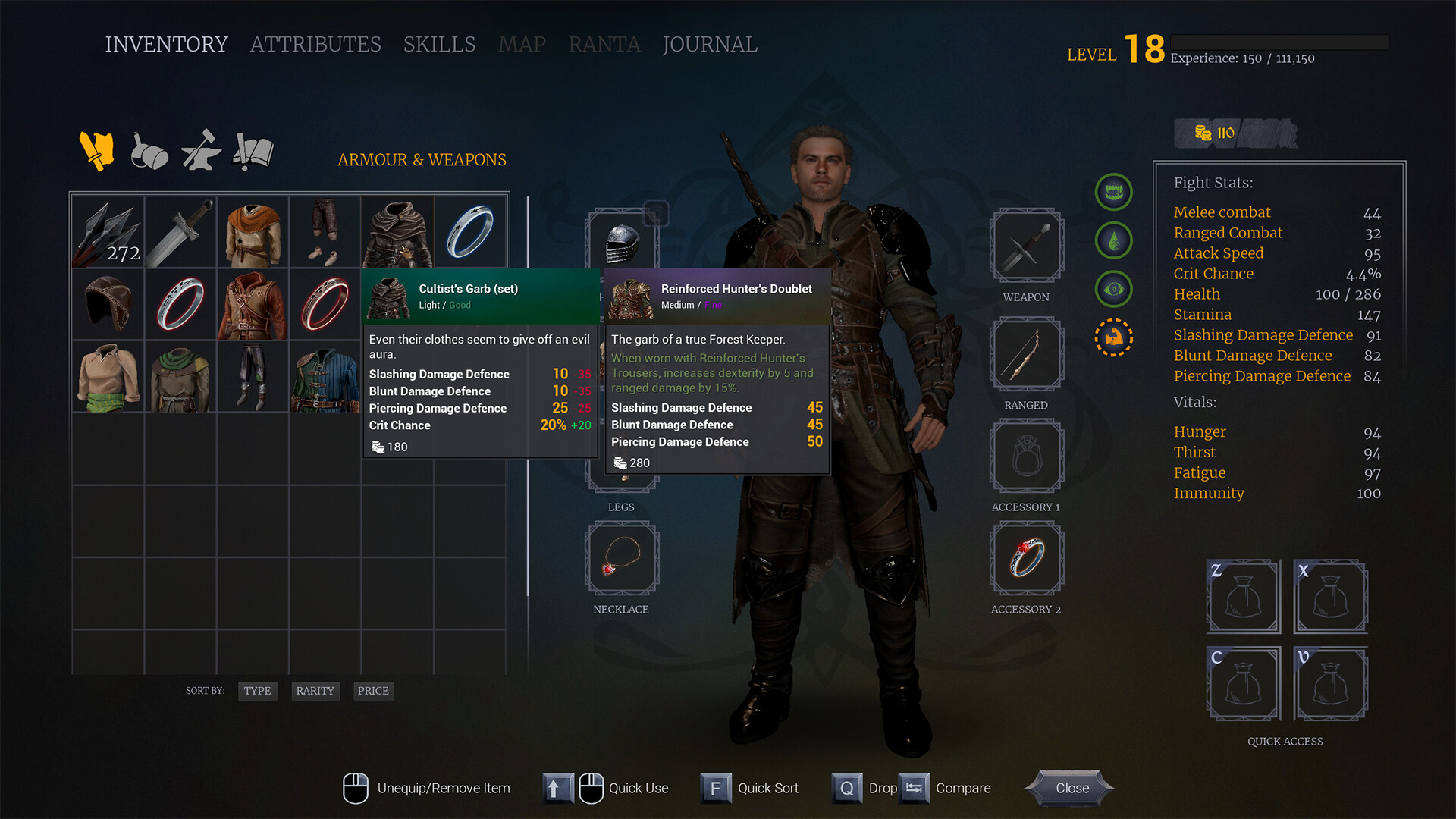
Of Ash and Steel Character Development Guide - Skills, Stats & Progression 2025
Master character progression in Of Ash and Steel with our complete guide to skills, stats, trainers, and equipment. Learn optimal build strategies, trainer locations, and progression paths for Tristan on Greyshaft island.